Make sure you check out my latest post on my blog for a chance to win a coupon to my store. All you have to do is read the tips section and leave a comment with a suggestion.
http://b2n2scraps.com/2012/10/14/a-scrapping-tip-and-sunday-review-marching-band/

Sunday, October 14, 2012

Thursday, October 11, 2012
New Blog
I have decided to make things a little easier for all of you! I have a new blog that is super easy to find! It's b2n2scraps.com That's it! Make sure to check that out, become a follower and add me to your reader list!
Tuesday, October 9, 2012
$2 Tuesday
It's Tuesday and that means that I have a fabulous product on sale for just $2! Today's sale is on My Girl. and My Girl Quick Pages. It's perfect for all those baby pictures you have of your precious little daughter.

 Take a look at some inspiration using this kit. Here's a layout I found by nanascraps. I love the clustering!


Here's a layout by Thao. I love how she positioned the three photos.
Monday, October 8, 2012
Sneak Peek and a freebie
I have a fun new kit coming out this week. It has been in the works for a long time so I hope you enjoy it! It's a kit that I haven't seen anywhere else. Here's a look:
.png) Can you guess what it is about? Leave me a comment on this post for a chance to win this kit. You can also enter the RAK at DST. You must enter by 3 pm CST on Wednesday, October 10th. I have to make the cut off time a little earlier because I have a meeting all evening on Wednesday!
Can you guess what it is about? Leave me a comment on this post for a chance to win this kit. You can also enter the RAK at DST. You must enter by 3 pm CST on Wednesday, October 10th. I have to make the cut off time a little earlier because I have a meeting all evening on Wednesday!
I also want to give you a little hint at what is in the $2 bin tomorrow. It's a great girl kit called My Girl. It's perfect for all those baby pictures you have of your precious little daughter.
The Quick Pages will be on sale for $2 as well.
I have made a freebie for you with this kit. I hope you enjoy! Don't forget to enter the RAK to win my new kit coming out on Thursday!
 You can download HERE.
.png)
I also want to give you a little hint at what is in the $2 bin tomorrow. It's a great girl kit called My Girl. It's perfect for all those baby pictures you have of your precious little daughter.
The Quick Pages will be on sale for $2 as well.
I have made a freebie for you with this kit. I hope you enjoy! Don't forget to enter the RAK to win my new kit coming out on Thursday!

Saturday, October 6, 2012
Saturdays News - 10/06/2012
In need of a fun, low-stress activity to kick off your week? Shel can help! She's hosting a speed scrap next Monday, October 8 at 4pm CT. It's a great opportunity to kick back and chat with other participants, have some fun, and create a great layout. Click on the flyer to learn more.
 For participating, you'll get her newest set of templates, Conundrum.

It's the beginning of October, so you know what that means - tons of new, exciting things happening at Stuff to Scrap. First up, we've got a whole bunch of new monthly challenges (check them out here). Make sure you check out all the challenges to earn yourself some points to scrap. And keep an eye on the forum for some awesome new challenge and special events coming up, like our World Card Day celebration. This month, we're celebrating World Card Day, but instead of celebrating just one day, it's a month long celebration.
 Make sure to click on the flyer to get all the info and to maybe even pick up some goodies!


 And to make your life easier, they've made this quick page set packed with 20 quick pages! There are so many choices to easily scrap those creep and cute Halloween pictures! You will be able to just plug your own pictures in, add any journaling or a titles you wish, and you're done!
 Love templates? Then you'll love this month's CU Grab Bag, Template Time, put together by the Stuff to Scrap designers. In this overly stuffed bag, you will find cluster templates, stacked paper templates, quick page templates, brag book templates, element templates, alpha templates, border templates, and more! Not only is this bag Commercial Use friendly, so designers can use them to make quick pages/etc., but it is great for all scrappers and will help you make fast & fabulous layouts!


It's the beginning of October, so you know what that means - tons of new, exciting things happening at Stuff to Scrap. First up, we've got a whole bunch of new monthly challenges (check them out here). Make sure you check out all the challenges to earn yourself some points to scrap. And keep an eye on the forum for some awesome new challenge and special events coming up, like our World Card Day celebration. This month, we're celebrating World Card Day, but instead of celebrating just one day, it's a month long celebration.
This month, The Stuff To Scrap designers have teamed up to bring you this awesome Halloween kit, Halloween Time. It's jam packed with awesome elements and fabulously scary papers to help you scrap all those creepy and cute Halloween pictures. It includes 2 full alphas, 72 elements, 27 papers, 2 12x12 templates in .PSD, .TIF, .PNG, and PAGE format, 2 brushes, and 5 different set of styles!
Check out the previews. Isn't this an awesome kit?
Head on over to the store (linked to the preview up there) to see detailed images of the different templates included in this amazing grab bag.
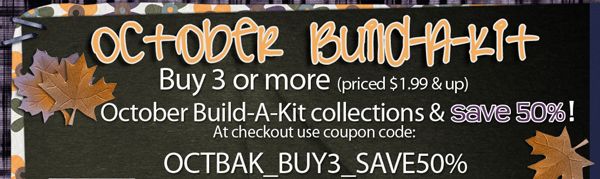
October also means a whole new set of Build-A-Kits have been added to the store. There are 29 amazing products added this month, ranging in theme from Halloween to Fall to vintage inspired kits. You are going to want to check out these amazing sets! And, our popular Buy 3 Save 50% coupon is back!
So what are you waiting for? Head on over check things out!
Friday, October 5, 2012
GSO from B2N2 Scraps Gallery
Today I have a couple of GSO's to share with you. There are lots of great layouts in the B2N2 Scraps gallery at STS but I managed to choose two to share.
This layout is by Sagediva2 using "Beyond The Sea". I love how the large photo is blended into the background paper.
The clustering around the smaller photo is wonderful. I love clustering.

"Beyond The Sea" Full Preview.
Preview is linked to the store for your convience.

The second layout I chose to show off today is from Thao. She created this layout using "Ready, Set, Swim" Collab by B2N2 Scraps and Gettin' Scrappy with Britt. I love all the layers in this layout from the paper strips behind the photos to all the elements clustered across the page.

"Ready, Set, Swim" Full Preview.
The product preview is linked to the kit in the store.

Wednesday, October 3, 2012
Give Credit where Credit is due!
One of the most important things you can do as a scrapper is give credit to those wonderful people that create these packages we use. No matter if you paid for them or found them on a free site. Each designer put in their own time and skill to make these special things for each of us and deserves credit.
There are many methods you can do in tracking credit for a layout. Find what works for you. What works for me is using notepad and copy/pasting my information into the file info for my layout. That way it is with each layout and I do not have to go search for that information. You can also make a hidden layer on your layout if you like that better, same principle. Here are the steps for my way of doing it.
Here is the layout I designed today. If you are like me when I create a layout I usually grab things from other kits, which makes tracking more difficult. In this kit I used several different designers.

After I complete a layout I open notepad (located by going to start | all programs | accessories). I then start copying the individual layers (one from each package). To copy I double click on the title of the layer, when it turns blue (where you could edit the line) I do a ctrl + c command.

After I copy and paste (quick command for paste is ctrl + v) them all over to notepad, I even keep track of my fonts, I start deleting the individual element name. People need to know what package you used not that you used ribbon_12 from so and so's package.
 When you have edited your notebook file, select everything and copy.

Once you have copied your text from your notepad, go back to your Photoshop Elements program and go to File, File Info....

I always place my credit in the caption box.

Now this layout always will have its credit already listed out. This comes in handy when you are building new profiles at scrapbooking galleries, who wants to take the time to organize things, AGAIN. This way you open, copy, paste and viola you are done.
ALSO - did you know that at certain sites you can link designers packages back to a store. This is just the ultimate way to give credit. Talk about promoting your favorite designer! One click and someone can buy their product.
Lets all support our designers hard work with credit. It is the right thing to do!
There are many methods you can do in tracking credit for a layout. Find what works for you. What works for me is using notepad and copy/pasting my information into the file info for my layout. That way it is with each layout and I do not have to go search for that information. You can also make a hidden layer on your layout if you like that better, same principle. Here are the steps for my way of doing it.
Here is the layout I designed today. If you are like me when I create a layout I usually grab things from other kits, which makes tracking more difficult. In this kit I used several different designers.

After I complete a layout I open notepad (located by going to start | all programs | accessories). I then start copying the individual layers (one from each package). To copy I double click on the title of the layer, when it turns blue (where you could edit the line) I do a ctrl + c command.

After I copy and paste (quick command for paste is ctrl + v) them all over to notepad, I even keep track of my fonts, I start deleting the individual element name. People need to know what package you used not that you used ribbon_12 from so and so's package.


Once you have copied your text from your notepad, go back to your Photoshop Elements program and go to File, File Info....

I always place my credit in the caption box.

Now this layout always will have its credit already listed out. This comes in handy when you are building new profiles at scrapbooking galleries, who wants to take the time to organize things, AGAIN. This way you open, copy, paste and viola you are done.
ALSO - did you know that at certain sites you can link designers packages back to a store. This is just the ultimate way to give credit. Talk about promoting your favorite designer! One click and someone can buy their product.
Lets all support our designers hard work with credit. It is the right thing to do!
Tuesday, October 2, 2012
"Mommy's Little Boy" is $2 Today Only

For this week's $2 Tuesday sale B2N2 Scraps will have "Mommy's Little Boy" on sale.


We would love to see your layouts with "Mommy's Little Boy" or any of B2N2 Scraps products. Feel free to email them to sweetcreations2009blogspot@yahoo.com.
Monday, October 1, 2012
$2 Tuesday: Mommy's Little Boy
For this week's $2 Tuesday sale B2N2 Scraps will have "Mommy's Little Boy" on sale.

I have a coordinating freebie for you.
Click on preview for your download.

Sunday, September 30, 2012
Sunday Rewind: Ready, Set, Swim!
Did you take a look at my newest kit yet? It's a collab with Gettin Scrappy with Britt. She and I put together Ready, Set, Swim that is all about swimming whether it be swim lessons, playing in the pool, playing at a water park or at a splash pad. This kit is so much fun! Take a look.
 Love it! I hope you love it as much as I do! You can find this kit at my STS store or my MyMemories store. There's a set of 19 QPs as well! Wow, what a gigantic quick page pack! All the products will be 30% off for one week (until Wednesday night).
 I wanted specific items for this swim kit and I couldn't find any CU stuff out there. So I made my own CU items-a swim belt, a float bar, a diving board and a kickboard. I decided to package them up to make a swim CU pack. I hope you like them!
 Remember, all these products are 30% off for one week! Take a look at what my CT did with this kit.


I have a freebie from my CT member Kristin. You can download HERE.


Subscribe to:
Posts (Atom)
